Wednesday, February 12, 2020

How to Hide an App on Your Android Device

Hiding apps on an Android device might seem a little sneaky, but in truth, it’s a great way to ensure that if your device is lost or stolen, your personal and private information will be safe. The Android operating system doesn’t make it easy to hide your sensitive apps, but there are a few ways you can clear out the bloatware and keep your personal information from prying eyes.


Why Would You Want to Hide Apps on Android? 

Hiding anything, even an app on your phone or tablet, is a way that people keep things safe or private. In the case of hiding apps, a person may choose to do that for a number of reasons. For example, someone may have family members that don’t believe in privacy. Hiding apps that contain sensitive information or communications is one way to protect your personal privacy.

Another reason people may choose to hide apps on their device is to protect information such as financial details, business secrets, or intellectual property from being compromised in the event their phone is lost or stolen.

Finally, some Android devices come loaded with bloatware that clutters the device. These useless applications can interfere with finding the apps you use most often, and can cause confusion or even slow your device down if they’re running constantly. Hiding these apps cleans up the user experience and can help your device perform better.

How to Hide Apps on Android


The first thing to know about hiding apps on an Android device is that there is not built-in way to keep your apps secret. That doesn’t mean you’re completely without options. Just that hiding your apps won’t be as easy (or as intuitive) as it could be. That said, one way to hide apps doesn’t really hide them at all.
Rather than hiding apps, disabling them can remove them from your App Drawer and stop them from using system resources. It’s easy to disable an app:
  1. On your device, go to Settings > Apps.
  2. Tap the app you would like to disable.
  3. On the App Info page, tap Disable.
  4. A confirmation message appears. If you’re sure you want to disable the app, tap Disable.
  5. The app is disabled, and will no longer appear in your App Drawer.

Use a Hiding App for Non-System Apps
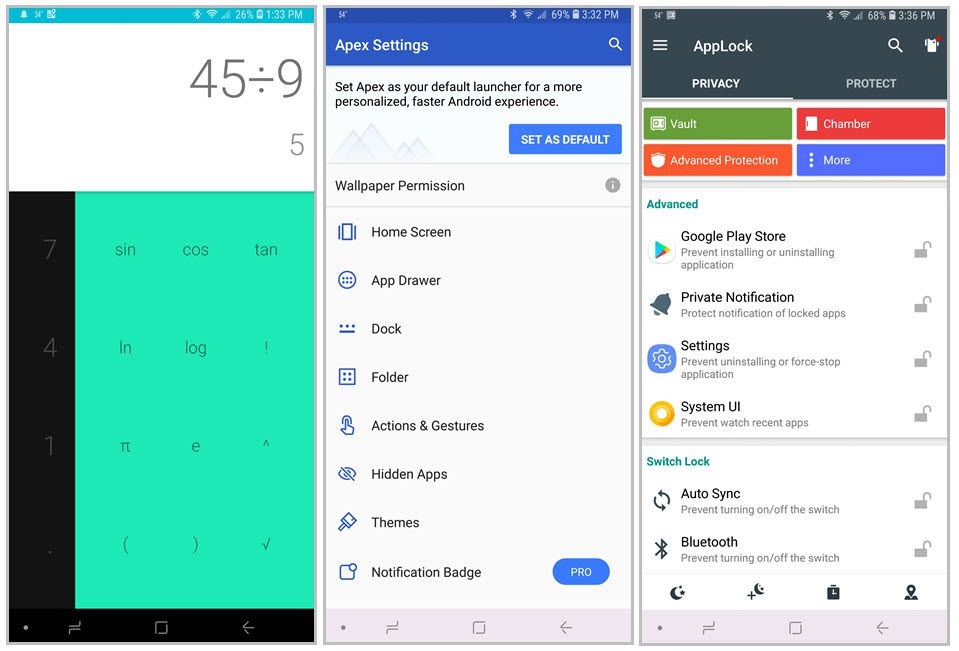

Apps that aren’t pre-installed on your device (that you download from the Google Play Store or other sources) can’t usually be disabled. Hiding those apps is a little more involved. You’ll need a third-party app to get it done.

Third-party app-hiding apps come in a bunch of different varieties. Some, like Calculator Vault, hide apps within a folder that’s disguised by another app. Sometimes this disguising app is fully functional, and sometimes it’s just a dummy app. The idea is that anyone looking for the apps you’re trying to hide isn’t likely to go more than surface deep during that search.

Other apps like Apex Launcher put a completely new skin (or interface) on your device, which includes secure folders that require a password to access where you can store the apps that you prefer to keep private. Or there are non-hiding app vaults like AppLock that don’t try to hide the fact that they are hiding apps. You set up a pin code to access whatever is stored in the vault, but the vault is visible to anyone that accesses your phone.  

App hiders are a great way to secure apps you don’t want others to access. Just take a some time to review a few of them before you make a final decision about which one to use, as each will have different features and requirements to work.

Hiding Apps in Secure Folders

Some Android phones, like some in the Samsung Galaxy line, may also have the ability to hide apps (as well as pictures, documents, and other files) within a secure folder. Like an app vault, a secure folder requires a pin number or biometric security key to open. Anyone accessing your device will need that key in order to access anything hidden in the secure folder.

Setting up a secure folder on a Galaxy device is simple. Just go to Settings > Biometrics and security > Secure Folder and then follow the prompts to set the folder up and give it a security code. Once it’s all set, you’ll find the Secure Folder in your App Drawer.

Hiding apps on an Android device isn’t as intuitive as it could be, but you do have some options, so lock up your sensitive information. Then you know it’s safe from anyone with unauthorized access to your phone.
Share:

Thursday, October 17, 2019

How to Know If Someone Blocked You on Instagram

How to Know If Someone Blocked You on Instagram

It's really annoying when you came to know that someone has blocked you on Instagram. You won't be able to see their profile and send a message. Moreover, Instagram will also delete your old conversation without your consent.

Due to privacy reasons, Instagram doesn't send any notification when you get blocked. If you are unable to find any person in your profile, it is not necessary that you have been blocked. It might also be possible that the person has either unfollowed you or deactivated his account.

Here are 2 simple ways that can help you to find out if someone has actually blocked you on Instagram.

Check if you have been blocked using the username

It's quite easy to find out if someone has blocked you when you know the username of that person. Follow this step-by-step guide - 
  • Open Google Chrome app or any other web browser in your phone.
  • Go to the Instagram website and login to your account.
  • Now type the web address given below in the URL tab and replace username with the username of the person who you want to find out if he/she has blocked you.
https://www.instagram.com/username
  • If the webpage displays an error message as shown in the below picture, then it might be possible that you have been blocked.
How to Know If Someone Blocked You on Instagram

This error may also occur if the person has deactivated his account or the username doesn't exist.
  • To verify further, logout of your Instagram account and try to visit the webpage again. If the profile is loading and you didn't get any error message, then it's for sure that you have been blocked by that person.

When you don't know the username

Sometimes, you don't know the username of the person. In that case, try to find out the username from other social media accounts like Facebook. Still if you don't get the username, we have another simple workaround to find out if the person has blocked you or not

First, search the person's name on your Instagram account and then search it from your friend's account. It's better to use your mutual friend's account who you know is already following or followed by that person. If you can find the person from your friend's account and not from yours, then you have been blocked.

That's how you can find out if someone has blocked you on Instagram. You can also check:

Share:

Tuesday, October 15, 2019

How to View Hidden Photos on Facebook


How to View Hidden Photos on Facebook

Facebook is the biggest social networking site ever created with over 1.94 billion active users who upload around 300 million photos per day and these numbers are getting higher and higher by the time.

Facebook also faces security and privacy threats each day and they are constantly working to make it safer and private since the Facebook is highly concerned about user’s privacy and they do whatever it takes it to more private.

Out of thousands of privacy bugs on Facebook, I talked about one where a user can see the private friend list of someone by doing a graph search and there was a Google Chrome Extension to automate this task but this privacy bug has been fixed and the extension was removed from the Chrome Webstore.

While doing some browsing on Graph search of Facebook I came across a simple graph search which allows you to see someone’s hidden photos on Facebook.

Once I say hidden photos it means hidden to you but not to everyone, it also doesn’t mean that you can see someone’s private photos on Facebook.
If you are not a friend with someone then you can’t see the photos in which they are tagged by their friends even if those photos are public.

How to Reveal Someone’s Hidden Photos on Facebook

Revealing hidden photos means “Seeing someone’s photos that are somewhere public but not visible to you”.

As an example, your friend uploaded a group photo publicly and tagged you into the photo which would be visible to you, your friends and everyone who check your friend’s photos.

But if someone checks your timeline they won’t be able to see that group photo since it is not shared by you.

By any chance, if someone wants to see your photos where you are tagged in, then first they have to check all of your friend’s photos which is hectic and impossible if your friend list is hidden.
Did your friends tagged you in an ugly group photo but you decided to hide it from the timeline? Or your friend may be looking good but you are like a potato then what? Hide it from the timeline? Of course.

But this trick is going to uncover your potato face to your friends if they come to know about it. And also you can see all photos of someone on Facebook.

Follow these steps to See Hidden Photos of Someone on Facebook.

1. Go to the timeline of the person whose hidden photos you want to reveal.
    It should be like https://www.facebook.com/username
2. Now you have to find the numeric Facebook ID of that user. Get this FB_id easy From here
3. Do a graph search on Facebook like – www.facebook.com/search/facebook_id/photos-of/

You just need to replace the faceook_id with the real numeric ID.

Now you are viewing hidden photos of the target profile.

Example of Graph Search to View Hidden Photos on Facebook

As an example, I am taking this Profile to show you the process. https://www.facebook.com/openhow [You can see there are very fewer photos are visible]

Now I will find the Numeric ID of above profile by checking the URL which contains the ID.

How to View Hidden Photos on Facebook
So I got the Facebook ID for the above profile which is 593892447305450

To reveal the hidden photos you need to perform a Graph search on Facebook like 
https://www.facebook.com/search/Numeric_ID/photos-of

To see hidden photos of the above profile I have to make the URL looks like this 
https://www.facebook.com/search/593892447305450/photos-of/ now copy the URL and paste in the address bar of your browser and hit enter.

From here, you would be able to see hidden photos of the above profile. If you check the revealed photos then you will notice that these photos are public where the target user is tagged.

How to View Hidden Photos on Facebook

This graph search will list all the photos at one place whether they or hidden or shared with you, you can simply scroll down and view photos on Facebook.

                                    How To Find out Who Blocked or Deleted you on Facebook Or  HERE
                                    How To Know if Someone Blocked You on Instagram


Update! A recent update by Facebook has limited the graph search since this tool is being used by online investigators to gather evidence of cyberbullying, war crime and human trafficking.

Video Tutorial about How To View Private Photos on Facebook

Here a video to show how to view hidden photos in Facebook for any Facebook user 2020 . this very quick and easy way to see hidden TAGGED Photos 


Share:

Friday, November 30, 2018

How To Scan Any Document With Your Phone (without scanner)

The phrase “scanning documents” used to mean spending a silly amount of time in front of a bulky machine, waiting for it to take a physical piece of paper and make it digital. But this is the mobile age, where nearly anything can be done with a phone. And scanning text-searchable documents is stupid easy with little more than your phone’s camera.


To start scanning everything from receipts to recipes, you probably already have everything you need: an Android phone and Office Lens app.
The app uses your phone’s or table’s camera to take a picture of the document and then edit it to make it look scanned and it does all of that in a few seconds with a few steps. Another cool thing about the app is that once you “scan” the document you can export it in a file type that suites you or to a service of your choice. Also, using the OCR algorithm you can scan business card to convert them into contacts as well as photos that you need to have the text extracted.

How To Scan Any Document With Your Phone

1- Download and install Office Lens app.

2- Once the installation is complete you can launch the app

3- The first thing that the app will ask for is for permission to access your files, which you should allow

4- Next you will see a short tutorial on the capabilities of the app

5- On the final slide of the tutorial you will need to click on “Start using Office Lens” after which the app will ask you for permission to use the camera, you will need to allow this as well since that is how you are going to scan the documents

As you can see on the bottom you have 4 modes of work: whiteboard, document, business card and photo. For this tutorial we went with a document, but the procedure is the same for the other 3 modes.

6- Place the document on a flat surface and make sure that you are not scanning it in the dark


7- Even though we are scanning a document make sure that you are shooting in whiteboard mode, it makes the scanned document look better

8- As you can see, the application outlines the document only without anything on the sides and as soon as you tap the orange button in the middle the document will be scanned

9- When the processing is complete, it can take a second or two, you can review the scanned document and if it looks good for you tap the orange circle on the right


10- The final step is saving the scanned document. You have a variety of options to choose from. On the top you can select the name of the file that you would like to save. Next, you can save it to your gallery as a picture or as a PDF (you do not need to be signed in to your Microsoft account for these). If you want to save the document on OneNote or OneDrive or convert is to text using the OCR and have it in a Word document or to be added as a slide in PowerPoint you need to be signed in. in order to sign in, tap the icon in the upper right corner and then tap on “add Account” and log in with your Microsoft credentials.

The procedure for scanning a business card is almost the same. The difference is when you are saving it. You can only save it as an image in your gallery, or to save it to OneDrive which is also the option that enables you to directly save it as a contact to your phone, using OCR.

Share:

How to Fix iPhone Deleting Messages By Itself


By default, iPhones messages are saved into the phone until you delete them. With the introduction of iOS 11, Apple gives users the option to set iPhone to automatically delete messages to save on storage. If for some reasons you have enabled the auto-delete messages on iPhone, this article will guide you on how to fix iPhone deleting messages by itself.
If you are wondering why iPhone keeps deleting messages by itself, then we have the solution for you. By disabling the auto-delete feature of messages history on your iPhone, your messages will stay in your inbox as long as you want. Take note that over time, message size add up until you may eventually run out of space especially if you are using a device with a lower storage limit.

How Turn Off Auto Delete Messages on iPhone

If your iPhone is deleting messages by itself and you want to fix it, then follow these steps:

  • Go to your iPhone’s Settings.
  • From Settings, scroll down until you get to Messages.
  • From the Messages page, scroll down until you get to the Keep Messages history under the Message History section.
  • Tap on the Keep Messages option.
  • Tap on the retention period. After selecting the period, your messages aging older than the retention period are automatically deleted off of your phone. If you want to disable auto delete conversation on iPhone, select the Forever option. Once selected, your iPhone will now stop deleting the messages on your device.

iPhone deleting messages by itself can be a big problem if you do not know how to disable the auto-delete message. Now you know how to fix it.


Share:

Thursday, November 29, 2018

How to Get Verified on Instagram


Instagram just made it easier for you to verify your Instagram account. Now you won’t have to avail of those shady Instagram verification service just to get that highly-regarded blue tick. This article will guide you on how to get verified on Instagram for free.

People used to buy Instagram verification service just to have that precious blue tick on their names. Aside from being highly likely that these services are nothing but scams, users may get their Instagram accounts at risk especially if the service requires users to provide their Instagram username and passwords. We can safely say that people who offer services and hacks to get verified on Instagram are only there to steal your money and your account details.

How to Get Verified on Instagram

For the longest time, Instagram did not clearly give ways for users to get a verified account. Only famous celebrities and businesses are rewarded with the verified icon. Now, things are changing. Instagram has made it easier for users to get verified on Instagram. The next sections will help you get that blue tick on your account.

Prepare Your Account for Instagram Verification

Though Instagram has made it easier for people to request a verification, not all accounts are verified. Instagram needs to be convinced of these things before they approve verification requests:

• Account legitimacy. The Instagram account must be legit. You cannot just make a “NikeOfficial” account, get a large following, request for verification and get approved. You must prepare a proof of business ownership or personal identification items to support your legitimacy claim.

• Large following. The Instagram account must have a sizeable amount of followers. Though Instagram does not openly give an exact figure, the number of followers must at least be on four digits.

•  No illegal activities. Your Instagram account must not be engaged in fishy activities such as spamming and buying Instagram followers.

How to Request Account Verification on Instagram

Once you are sure that your Instagram is worthy of being verified, you can follow the steps below to request a review and verification of your Instagram account:

  1. Open the Instagram app on your phone.
  2. With Instagram opened, click on the Profile icon located on the lower-right part of the screen.
  3. Now that you are on your Profile page, tap on the Menu icon located on the upper-right part of the screen.
  4. From the Menu, click on the Settings icon located on the lower-most part of the screen.
  5. From Settings, scroll down and tap on Request Verification.
  6. On the Request Verification page, enter your full name, another name you are known as, and the category of your account.
  7. Prove that you are a real person by attaching a government-issued photo ID that shows your name and birthday. Tap on the Choose File button to attach a photo that is saved on your phone.
  8. Tap on the Send button and you will now just have to wait for feedback on your account Instagram account’s verification request.


There are a lot of benefits of being verified on Instagram. Just make sure that your account is ready before you try to get verified on Instagram. If you have questions about any of the information above, let us know in the comments section.

Share:

Monday, November 26, 2018

How To Find Your Lost Android Phone

Have you misplaced or lost your Android device and are looking for solutions? Don’t lose hope yet. In this guide, I will show you two easy ways by which you can easily locate lost Android phone. You will have to be logged in to your Google account on your lost or stolen device for these tracking services to work.


How To Track Android Phone Using Google’s “Find My Device”

Android phones come with a “Find My Device” feature that can be used to recover your lost Android phone. This feature is available in phone settings, and you do not need to install any third party app to access this feature. If you want to locate your smartphone, you need access to a web browser, and you can pinpoint your phone’s location. However, if this service is not activated, then you cannot use it to track a stolen phone.

How To Enable “Find My Device”

  1. Go to Settings > Security.
  2. Under Device Administration, tap on Device administrators.
  3. Make sure the box next to “Find My Device” is checked.


You’ll also need to enable location services and location history for location accuracy while tracking your device. To enable it :
  1. Go back to Settings and tap on Location.
  2. Turn the toggle switch on the upper left corner to On position.
  3. Tap on Mode. Set it to High accuracy.


  4. Go back to Location settings and tap on Google Location History.
  5. Toggle to switch on the option next to Use Location History. Also, toggle the switch next to your device name to On position.

After you have completed these steps, you can locate a stolen phone whenever it has access to mobile data or Wi-Fi.

Find a lost Android using browser and “Find My Device”

  1. Go to “Android.com/find” from any browser on any device.
  2. Login using your Google profile.
  3. If you are running multiple Android devices using the same Google account, select the device you want to connect to.


Once you select your device, you can perform three different actions:
  • You can remotely ring the device. It will continuously play a sound for 5 minutes, even if the device is in silent mode.
  • You can lock the device and display a message or phone number on the lock screen. This option is much helpful when you had not set any screen before.
  • You can also completely wipe your device. Note that this will also delete your Google account from your phone and you will no longer be able to track it. If you have any sensitive data on your phone and there is no hope to retrieve your lost Android phone, this is the best option for you.

How to Locate Android phone with Google Maps

Google Maps is one of the essential Android apps that can even help you to track a stolen phone. To use this feature, your device must be in On state, have access to Wi-Fi or cellular data, and location services must be On. You can open any browser and locate your phone in a few steps:
  1. Go to Google Maps and sign in to your Google account
  2. Click on the menu icon in the upper left corner and select Your Timeline.

Share:

Labels

100000 Stars (1) 2013 (1) 360° panorama (1) 80's games (1) Air traffic (1) Airplane (1) Airplane tracker (1) Airplane traffic (1) Amazon (1) Amazon delivery (1) analyze files online (1) Analyze online (1) Analyze URL (1) Android (14) Android applications (6) Android applications on PC (1) Android codes (1) Android emulator (1) Android secret (1) Animation (1) Antivirus (1) app (11) App store (2) Apple (1) April fool's (2) ASCII Art (1) Atomes (1) audio converter (2) Augmented Reality (1) Avatar (2) Avoid spam (1) Bandwidth (1) Bank (1) Battery (1) beautiful folder (1) Best IPTV (1) Best of (1) BlackBerry (1) Block (7) Blog (1) BlookUp (1) Blue Screen (1) BlueStacks (1) BlueStacks emulator (1) Book (2) Breaking Captcha (1) bug (2) Bypass (2) Bypass Captcha (1) Bypass Captcha verification (1) Bypass SMS verification (3) Call verification (1) Camera (1) Camera Size (1) Camera Trace (1) Canon (1) Captcha code (1) Cartoon (1) Cartoonify (1) Cast (1) Change color folder (1) Change font (1) Change IP (4) change website font (1) Charge (1) Check email offline (1) Christopher Sholes (1) Chrome (2) Chrome Experiments (2) Chrome extension (4) Chromebook (1) Chromebook Pixel (1) Cloud Computing (2) Community (1) Compare tool (2) Computer (50) Computer theft (1) Convert (2) Convert files online (1) Convert image to ascii (1) Convert online (2) Corona (2) Coronavirus (2) COVID-19 (2) Create game (1) Credit Card (3) Credit Card Generator (1) Crypt (1) Delete (2) desktop shortcut (1) Detonate nuclear bomb (1) Digital Camera (2) Diposable (1) Direct download (1) Direct download torrent (1) directory (1) dirlock (1) Disconnect Facebook Messenger on Android (1) Disconnect from Facebook (1) Documents (1) Download (3) Draw on desktop (1) Draw on screen (1) Draw on windows (1) Draw on your windows desktop (1) Drones (1) Duplicate folders in same place (1) EA Sports (1) Ebook (2) Electronic video games (1) email (4) Email management (1) Emulator (1) Excel (1) Extension (2) Eye test (1) Eyesight (1) Facebook (13) Facebook chat (1) Facebook infographic (1) Facebook Messenger (1) Facebook Photo Zoom (1) FIFA (2) File (3) file converter (1) File without name (1) Find (1) Find Camera (1) Find computer (1) Firefox (1) Firefox extension (1) fix (3) Flash drive (1) FlightRadar24 (1) Folder with no name (1) Folder without name (1) Folders (2) Folders different color (1) Folders with same name (1) font (1) Fonts (1) Format (1) Free Call (3) Free International Calls (1) FREE SMS (1) FREE SMS Online (1) FREE SMS worldwide (1) Free VCC (2) Galaxy (1) Galaxy Grand 2 (1) Gameglobe (1) Gameplay (1) Games (6) Games online (1) Gmail (1) Golden Touch (1) Google (7) Google Glass (1) Google Helpouts (1) Google Hyperlapse (1) Google Nose (1) Google photos (1) Google Play (3) Google Plus (1) Google Street View (1) GPS (1) GTA (1) Hack (6) Handimation (1) Help over live video (1) Helpouts (1) Hide (3) Hotspot (1) How to (100) How to. (2) Hyperlapse (1) iCloud (1) Image (1) image converter (1) image to ascii (1) Infograghic (1) Inside submarine (1) Instagram (2) Intel (1) International air traffic in real time (1) Internet (95) Internet Connection (1) iOS (8) iOS applications (2) iphone (6) IPTV (1) Journey through Middle-earth (1) Keyboard (3) keyboard layout (1) Landscapes (1) Laptop (1) Life-size (1) Listen music (1) Listen to websites (1) Live (2) Live flight tracker (1) Lock (4) Lock file (2) Lock folder (1) Lock USB (1) Lock your file with a Password (1) Lord of the Rings (1) Lost Camera (1) Mac (5) MAC Address (1) MAC-OS emulator (1) Magnifying the Universe (1) Make game (1) map (3) Mars (1) Martian panorama (1) Martian sol (1) Media (1) message (2) Messi (1) Middle Earth (1) Milky Way (1) Most viewed (1) Most viewed videos (1) Most viewed Youtube (1) Mouse over (1) Movies (2) MS-DOS emulator (1) Museum of me (1) Music (1) nameless folder (1) Namie Amuro (1) NASA (2) Netflix (3) Network (3) Nokia (1) Nokia Lumia 525 (1) Nose (1) Nuclear (1) Nuclear weapons effects simulator (1) Nuke (1) Nuke simulator (1) Ocelot (1) Office Lens (1) Offline (1) Old OS (1) Online music (1) Operating System (1) optical illusion (1) P’9982 (1) Paint (2) Panorama (1) Password (7) Paypal (3) Paypal auto Payment (1) Paypal Payment Subscription (1) PC (1) PC to Mobile (1) Personal assistance (1) Phablet (1) Photo Zoom (1) photos (6) Photoshop (1) PIN (1) Porsche (1) Prime Air (1) Privacy (3) Private network (2) Proxy (2) QWERTY (1) Radar (1) Real-size (1) Real-time (3) Real-time air traffic (1) Rebtel (1) Receive SMS online (1) Recover (1) Remington (1) Rocknest (1) Rooter (1) Run Android apps on PC (1) Run Android apps on Windows (1) Safari (1) Safari extension (1) Samsung (2) Satellite (2) Scan (2) Scan files online (1) Scan online (1) Scan URL (1) Scan Virus (1) scheduled shutdown (1) Screen of Death (1) Scribd (1) Secret codes (1) Secret Menus (1) Secure file (1) Secure folder (1) Security (22) Seen block (2) Seen Facebook (1) Self-destruct (1) SelfishNet (1) Send FREE SMS (1) Sexy (1) Share (2) shortcut (2) Sight test (1) Simulator (3) Skype (2) Smartphone (11) SMS (2) SMS verification (2) Snap (2) Snapchat (1) Social network (8) Software (2) Soundgecko (1) Space (2) Spam (3) speed connection without software (1) Speed up connection (2) Speed up Windows connection (1) SpotAuditor (1) Spying (1) Starlink (1) Status Search (1) Steganos (1) Stolen Camera (1) Stop Motion (1) Stop spam (2) Stream (4) Street View (1) Submarine interior (1) Submarine with Google Street View (1) Surf anonymous (2) Talk Free (1) Tech (27) Temporary email (1) text to ascii (1) text to audio (1) text to mp3 (1) text to sound (1) text to speech (1) Time-lapse (2) Timelapse (2) toolkit (1) Tools (2) torrent (2) Torrent from URL (1) Torrent to direct (1) Track (4) Track computer (1) Track missing computer (1) Translate (1) Turn your blog into a book (1) Tutorials (9) two folders same name (1) Type Faster (1) Typewonder (1) Typing (1) UAV (1) Unblock (4) Unfriend Finder (1) Unfriend me (1) Universe (1) Unlock (2) unsubscribe (1) update Facebook Status (1) Update Facebook status using iphone (1) Updates (1) URL to Torrent (1) USB (2) useless (1) useless web (1) Verified (1) Verify Paypal (1) Viber (1) Video (6) video converter (2) Virtual (3) Virtual computer (2) Virtual Credit Card (2) Virtual desktop (2) Virtual museum (1) Virtual radar (1) Virtual Reality (1) Virus (4) Vision test (1) VLC (1) VPN (5) WAYme (1) We're watching you (1) Weapon (1) website (1) website fonts (1) website shortcut (1) WhatsApp (2) Wifi (1) Wikipedia (1) Windows (15) Windows folder (1) word to ascii (1) word to pdf online (1) Xlsx (1) Youtube (4) Youtube close (1) Zoom (1)