Tuesday, May 19, 2020

Find and Track Any Satellite with Satmap

A map tracks and locates thousands of satellites in real-time, including Starlink sats You can even find out where the International Space Station is.

Track Satellite in Real-Time

Satmap System Limited, is a planisphere from Google Maps, actually displays many other satellites than Starlink's. That said, the trajectory of the 421 satellites (this first wave is the embryo included 60 sats of the Starlink network, which is supposed to one day unite thousands around the globe) is fascinating to watch: satellites follow each other in Indian wire while flying over different parts of the world.

In addition to Starlink, Starmap displays the position of satellites used for GPS and competing services (Galileo, Beidou, Glonass, SBAS), as well as Earth observation satellites, those dedicated to telecommunications (Intelsat, Next, SES, Orbcomm, Globalstar, O3C, Iridium Next). The icing on the cake is that the International Space Station and its Chinese equivalent, Tiangong-2, can also be located.

Satellite quick facts

Includes launches through 3/31/2020

Total number of operating satellites: 2,666

  • United States: 1,327
  • Russia: 169
  • China: 363
  • Other: 807
- LEO: 1,918
- MEO: 135
- Elliptical: 59
- GEO: 554

Total number of US satellites: 1,327

  • Civil: 30
  • Commercial: 935
  • Government: 170
  • Military: 192

Track Satellites in Real-Time

In all, 1204 Satellites can be tracked on Satmap. This is only a fairly large sample of what is in orbit around the Earth: according to the UCS, there are currently 2,666 active satellites, including military satellites, but they are not indicated in the map. We do not see, for example, spy satellites (of course) and intelligence satellites.

Find and Track Any Satellite with Satmap

A menu on the left allows you to select the satellites you want to view, so you don't have an overloaded map. However, we regret the lack of a search bar to find a particular satellite. For now, you have to click on the satellites one by one to display additional information, without being sure to stumble upon the one you are looking for.

However, the service occasionally receives updates that improve the quality of service. On May 18, the menu was added, while individual tracking of Starlink satellites is possible since the 28th. A dedicated Twitter account, Satmap.Space, communicates regularly on service's news and also gives information about it's map.

Visit Starmap
Share:

Friday, May 15, 2020

Live SpaceX: Watch 60 Starlink Satellites Take Off

SpaceX is preparing to launch 60 new Starlink satellites on May 19. to provide Internet access from Space.

Starlink Live Launch Satellite SpaceX

Starlink Program

The goal of Starlink was to put a first cluster of 60 satellites into orbit as part of the Starlink program. Starlink is the name of a Project carried out by SpaceX to bring Internet access from space, in principle primarily for regions that are not or not at all served by conventional infrastructure. In all, the Starlink network would have thousands of satellites.

These satellites, once deployed in orbit, are not immediately functional. It will take tens to hundreds to provide a minimum level of regional coverage. It even takes several hundred for the quality of service to reach an appropriate threshold. The first phase of the project involves sending about 7,000 satellites. That number could be rise to 11,000.

Unlike conventional telecommunications satellites, Starlink-operated devices will operate in a particularly low orbit. Some of them will be positioned only at 550 kilometres altitude. In comparison, telecommunications satellites are placed very far away, in a so-called geostationary orbit, about 36,000 kilometers away.

The first wave of satellites will be deployed with a Falcon 9 launcher. This should also be the case for the following shipments. Elon Musk predicted that various problems might arise during this first stage, but he did not specify their nature: problems of satellite operation?  Positioning on orbit? Deploying from storage racks? Answer will be given at time.

What's the mission of Starlink

Once again, the aim is to add new satellites to the Starlink constellation, which began in 2019. This flight is the eighth shot dedicated to this project, which, it should be remembered, aims to provide access to the Internet from space for regions of the world that are poorly covered in or devoid of terrestrial telecommunications infrastructure.

As with other launches, the Falcon 9 rocket's payload will contain sixty satellites. With them, the constellation will increase to 480 satellites. This will enable SpaceX, which is behind this program, to prepare for the upcoming launch of its offering as an Internet Service Provider.

Starlink Falcon 9 Satellite SpaceX

SpaceX will become an ISP, providing satellite Internet access.

SpaceX will become an Internet Service Provider by the end of 2020. It is at this time that the American company plans to launch its Commercial Service Starlink, which consists of offering a connection to the network through satellites deployed in orbit around the Earth.

Despite the coronavirus and the constraints that the disease places on daily life and business activities, SpaceX has not paused its program: there are two launches dedicated to Starlink in January, and then one launch every month until May. Launches fired in June, July and August are also on track, as well as for almost all other months of the year.

True to its strategy, the rocket that will be used has elements that have already been used in previous missions: the first stage participated in two Starlink missions, as well as flights Iridium-8 and Telstar 18 Vantage. As always, satellites can be seen from Earth for a few days, until they settle in the right orbit and complete their maneuvers.

Launch Date

SpaceX announced the successful static firing of its launcher on May 13, and now they are preparing for the actual flight that is scheduled for Monday, May 18, at 3:10 a.m. local time — the mission departs from Florida, on the east coast of the United States.
Update: The launch has been delayed due to tropical depression. Actual date will be Tuesday, May 19 at 3:10 a.m

Starlink live launch SpaceX tweet

Startlink Live Launch

The Live launch is broadcast on SpaceX's official website, as well as on its YouTube channel. We will include the video in this article when it is available.

Share:

Wednesday, May 13, 2020

How To Get Nord VPN Premium for FREE [Working]

NordVPN-FREE-Premium
Who wouldn't like to have a free Premium account NordVPN? This VPN is the best VPN Online and is very widely coveted. But everything at a price and in order to benefit from the features of a premium account, you have to take a subscription. If you're used to use a free VPN, you'll quickly realize the difference between free and paid offer. So I'm going to explain how to take advantage of a NordVPN Premium account completely free of charge.

What is Nord VPN:

VPN Goes for Virtual Private Network. We've talked in a previous article about What is VPN and How does it work.
NordVPN is one of the best (many say the best) premium VPN on the web. Below, we explain how it works, and how you can get it for free.

NordVPN may not have the largest server network in the industry, but it is close to it. Covering more than 5,400 servers in 61 countries around the world, NordVPN offers you an amazing range of spoofable IP addresses that you can choose from for any use you think of. The numbers aren't enough? What about their network of specialized servers, each specifically tailored to a different use case? (onion over VPN, anti-DDoS, multi-hop VPN, P2P, dedicated IP address, and obscured servers). That's enough to unlock Netflix, blow up China's Great Firewall, or just browse, download and torrent in peace. Don't hesitate to get comfortable with the free and open Internet; With NordVPN, you'll never be limited by speed - you'll never be limited by bandwidth limitation, or run out of server changes.

Why Using a Premium Nord VPN:

In addition to having a big network of servers, NordVPN is both fast and secure. It all starts with 256-bit AES encryption, which is so difficult that a supercomputer would need millions of years to break a single password. Specific protocols include OpenVPN's high-end UDP and TCP protocols, as well as SSTP: a technology that can beat even the most stringent censorship filters. The logging policy is also airtight, with no record of your traffic, IP address, time stamp, bandwidth or browsing history stored. Finally, NordVPN's holding company is based in Panama - a neutral country - which means that the world's major governments can't do anything to force your data to leave NordVPN. Whatever your requirements, it's hard to go wrong with NordVPN.

The free VPNs, I still can't understanding why they still exists ... For several years now, it has been found that there are two types of free VPNs: the bad and the very bad.

The bad ones are the ones that actually act like VPNs and offer functional services. That is, they encrypt your data and hide your IP address. Bad VPNs do this, in a limited way (often in a lot of data) and therefore require you to pay to really function fully. This costs much more in the end than a premium VPN.

The very bad ones are the ones that don't really encrypt, hide (or not) your IP address. In fact, they only have VPNs and are mainly looking to steal your data (as you've seen many times on android VPN apps) or charge you for a service that doesn't exist.

So these VPNs are a long way from what I think of NordVPN. Having a premium VPN account is therefore, in my opinion, the only viable option when looking for a functional and above all safe VPN. Indeed, this at a cost (about 3$/month) but it is worth it them, given the comfort and security that they bring. This is the moment when I say to you: "Wait, there is a way to have a premium account, at NordVPN, totally free!" This prevents all rotten VPNs that hang around on the net, to benefit from the services of the best VPN and all for free. So here's how to use NordVPN for free.

Nord VPN FREE VS Premium

You know the old adage: if something is too good to be true, it probably is. In that sense, you may be wondering why a service like NordVPN would provide free access? Is it really safe to use? Or, will they steal your information or even use your computer to do something wrong? Such questions are natural, especially considering all the negative publicity that free VPNs have received in the past. Fortunately, we can reassure you.

NordVPN is one of the largest and best-established high-end VPNs in the industry. Of course, its ultimate goal is to get paying customers and make a profit, but that's not necessarily a bad thing. Charging users a few dollars a month allows NordVPN to pay for new servers (which they do quite frequently), hire developers, maintain a 24/7 support line, and continually improve its security. You get what you pay for and NordVPN is invaluable. Since its inception in 2012, the service has been praised by users. In this case, a well-funded research and development is a guarantee of quality.

They offer free access for two main reasons. The first is to impress you with their product so much that you would sign up voluntarily for a paid version. It's an open marketing ploy, but it's worth it, especially if you only need a VPN for a short time. Similarly, the repayment guarantee is a way to demonstrate that they are true to their product and to let you know that there is absolutely no obligation or risk to you.

It is also important to remember two other things. First, because NordVPN is a business, it has a direct interest in your security and anonymity. If someone accesses your browsing data or compromises your security while using NordVPN, the brand will have a bad image and lose a lot of money. They don't want that. The result is that NordVPN invests a lot of time and money to provide the best possible service. This is the main reason why NordVPN is your "free" VPN provider; you can really trust them to provide a high quality service at any opportunity.

How to Get Nord VPN Premium For FREE

Here I'm not going to give you one method, but two. So here is how to Get Nord VPN Premium for FREE:

Method One: Free Shared Nord VPN

This method is very well known on Netflix or Disney plus subscriptions. It is simple and allows you to use all the services you want for free. But surprisingly, it is much less prevalent on antivirus and VPN subscriptions.

NordVPN offers really great features and services. One of them is the ability to use a NordVPN account on multiple devices at the same time, 6 simultaneous connections to be precise. These are "connections," not "devices." In other words, the app can be installed on thousands of devices, the important thing is to have only 6 devices whose NordVPN application is in the process of using connected at the same time.

The first method is simply to use the account of a friend or family member. The person only needs to give you their credentials. You can then have NordVPN for free on your devices.

The two cons of this account sharing is that the limit of six devices is very quickly reached to several. Indeed, between mobiles, tablets, pc, and box. The number is climbing fast. The second drawback is for the person who lends his NordVPN account. It will have to entrust its identifiers, and therefore the contact information, payment information that is linked.

Second Method: Use Nord VPN Premium for FREE (30 days)

NordVPN is an excellent VPN. But it is not possible to get a free trial of their product directly. On the other hand, convinced of the quality of their VPN, they offer any subscriber the opportunity to cancel the subscription for the first 30 days. The conditions are simple and the refund immediate. This allows NordVPN to be used for 30 days for free.

In order to take advantage of these 30 days of testing, you must respect the following:
  • Purchases made directly via mobile markets (itunes, playstore,..) cannot be refunded
  • Bitcoin payments cannot be repaid
  • The refund request cannot be made after 30 days.
  • Only subscriptions over one month benefit from this refund guarantee. (so 1 year; 2 years, 3 years....)
Those are the only conditions. All you have to do is take a subscription of at least one year, pay by credit card or Paypal. I advise Paypal as the refund is much faster after your free trial.

How to Cancel the FREE Nord VPN Trial

Requesting a refund from NordVPN is very easy. It is done in 3 small, ultra-simple steps:
  • Sign in to your NordVPN account
  • Request refund by email or live on Live Chat
  • Wait a maximum of 10 days (usually 5 or 6 days)
To request a refund by email, simply click on the "email" icon and then fill out the form. In the description, make it clear that you have used NordVPN and that you want to be reimbursed for your free period.

If you go through the live chat, the person will execute the refund request faster. Ditto, you have to explain to him that you want to cancel the free trial period.

Important note, as long as you request the refund, the trial period ends. It is therefore better to wait until the end of the 30 free days before requesting a refund.

Also Check:
Share:

Tuesday, May 12, 2020

How to Delete Youtube History

How to Delete Youtube History
If you're watching videos on YouTube and want to clean or delete your history, here's what to do.

If you consume a lot of videos on YouTube, you may feel the need at times to delete the history, partially or totally. Either because you find that the platform's recommendations have become shaky, or because if you share your PC with a loved one, family, couple or roommate, you don't want them to know your activity on the site.
Here's the method for the main video platform Youtube.

How to Clear Youtube Viewed History

Go to YouTube and, in the left column, click on the "History" section. You'll then see the list of videos you've seen, the most recent being shown first. There are tools available to you to manage this section: you can delete videos on a unit basis, only to fire those you don't want to keep in the history, or all of them. And you can also suspend Youtube from memorizing your research.

To clear the videos one by one, simply move your mouse cursor on one of them to make the deletion cross appear to the right of it. A confirmation message "This item has been removed from your history". Reviewing a deleted video obviously makes it go back into history.
Delete Youtube Video Search History
More radical is the total suppression of history. In the right column, find the line "Clear all Search History" or "Clear all Watch History" (see photo). A confirmation message will appear to warn you that this will affect all apps related to your account, on any of your devices, and that this will reset the recommendations.
Delete Youtube Video Search History
Your Search History is now empty, and you have a message telling you "This list contains no video." But then again, it will fill up when you will do more researches on Youtube.

Clear Youtube History on Android and iPhone

You can also delete items from your watch history in the YouTube app for iPhone, Android, or iPad.
To do so, tap the “Library” icon on the toolbar at the bottom of the app, and then tap the “History” option.
Tap the menu button to the right of a video, and then tap the “Remove From Watch History” option.
Clear Youtube History android
We don’t see a way to view your entire search history and remove individual searches from it in the YouTube mobile app. You can use the YouTube website to remove individual searches. You can also clear your entire YouTube search history from the app using the instructions given in this article.

How To Turn Off Youtube History

Youtube provides you another option to deactivate history on YouTube. Also in the right column, click "Pause Watch History" or "Pause Search History" and, on the warning message, validate. Of course, you can re-enable it whenever you want, by clicking "Enable Watch History" However, the videos seen in the meantime will not show up.

These explanations relate to videos history, but you can do the same for search history, comments left under videos, community activities, and live chats. Depending on the data, YouTube provides options to delete all or part of your content, or disable its retention in your profile.

Other options also exist in the dashboard that Youtube offers to manage your online business. This is the case with  YouTube searches and videos viewed on the platform. You can also set a shelf life for your activities. You can choose from the provided delays: three months, eighteen months or none (it will be up to you to do the deletions manually).

Remember: Even if you’ve paused your YouTube watch history, your web browser will still keep storing the YouTube web pages you view in your browsing history. This doesn’t apply if you’re watching YouTube in an app, of course. But, in a browser, your browser will remember YouTube web pages like any other page you’ve visited.

Pause Youtube History on Smartphones

To clear your entire history in the YouTube mobile app, head to Library > History. Tap the menu button at the top of the app, and then tap the “History Settings” option.
Stop Youtube app History on Android and iphone
Scroll down and tap “Clear Watch History” under History & Privacy.
You can also tap “Clear Search History” here to clear your entire YouTube search history.

Use YouTube’s Incognito Mode

If you’re about to watch some embarrassing videos you don’t want YouTube remembering later, try using YouTube’s Incognito Mode.

For now, YouTube’s Incognito Mode is new and only available in the Android app. In the future, Google will hopefully add this feature to the iPhone app, website, and YouTube apps for other platforms.

To enable Incognito Mode, tap your profile picture at the top right corner of the YouTube Android app, and then tap “Incognito Mode” on the menu screen that appears. After enabling Incognito Mode, any searches you make and videos you watch in the current session won’t be saved.

Also check:

Share:

Saturday, May 9, 2020

Samsung Prepares to Launch its First Credit Card

Samsung is about to launch its first credit card. Inspired by the Apple Card and Huawei Card, the South Korean manufacturer is preparing to launch a physical debit card to complement Samsung Pay, its mobile payment service. The card is expected later this summer. Here is the first information available. 
Samsung Credit Card
Last year, Apple launched the Apple Card, a credit card compatible with Apple Pay. More recently, Huawei has followed in the footsteps of its rival with the Huawei Card, a credit card designed to integrate the Huawei Pay app. According to information obtained by our colleagues at Engadget, it is now Samsung's turn to get back into the dance.

Samsung Debit Card

Samsung opts for a debit card, unlike Apple and Huawei

In the summer of 2020, Samsung will expand the "experience" offered by Samsung Pay with an "innovative" debit card linked to an account to manage your expenses. Unlike Huawei and Apple, Samsung relies on a debit card rather than credit. Each expense will be debited instantly.

To develop this prepaid card, and the management account that accompanies it, Samsung has partnered with SoFi, a California fintech specializing in student loan refinancing in the USA. The start-up also offers personal or mortgage loans and cryptocurrency trading.

This physical card will be added to the Pay Cash virtual credit card. Launched in 2019 with the support of Mastercard, it allows you to add funds to the card by transferring them from another bank card (debit or credit) or by bank transfer.

Samsung will release more information on the physical bank card in the coming weeks. We'll tell you more about it as soon as possible, and we will update this article accordingly.

You can also Check:
How to Get FREE Virtual Credit Card.
How to Open a US Paypal Account.
Share:

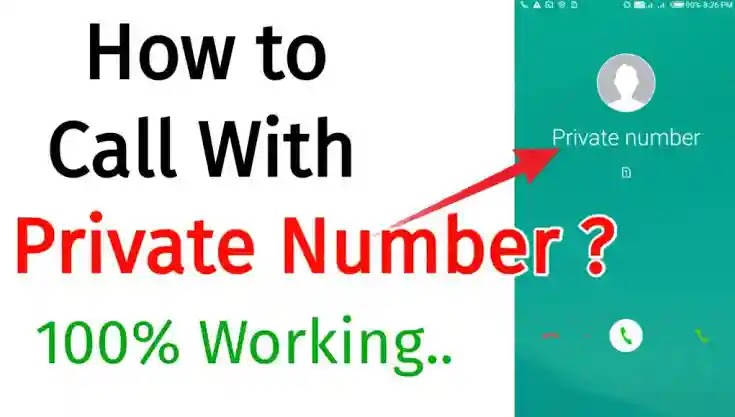
How To Make Phone Call Using a Private Number

Make Phone Call Using a Private Number
In some cases, you would like your phone number not to appear on your caller's screen. There are several ways to do this. There are several methods. Some are temporary (selective), while others could be permanent. Here's how to activate them.

Why To Hide Your Phone Number when Calling ?

More than twenty years ago (in 1997 precisely), a practical function appeared in fixed and mobile telephony: the presentation of the caller number. This is a feature that has become very common today, allowing the correspondent's number to be displayed on the screen. Of course, this means that the person you are calling knows your number when you call him (and vice versa). With this feature, your contacts' names appear when they call you.

At the same time, to protect those who don't want to reveal their phone number, it's possible to hide it so that it doesn't appear, even for those who have your number. What appears on the correspondent's screen is the words " hidden number ", " private number " or " unknown number ". Several methods are possible to make private calls. Find in our posts another guide to block certain numbers on Android or iPhone, including hidden numbers.

Note that blocking a number is also possible if the number is hidden and some users systematically block hidden numbers. Last remark on this service, hiding his number is not possible with certain services, such as firefighters or UAS.

How do I call by hiding my number ?

There are several ways to hide your phone number and call using a private number. Some of them are temporary for use from time to time. Others are permanent and will hide your number during all your calls. During this tutorial, we will assume that you would like to call 0123456789.

Temporarily Hide Your Number Code

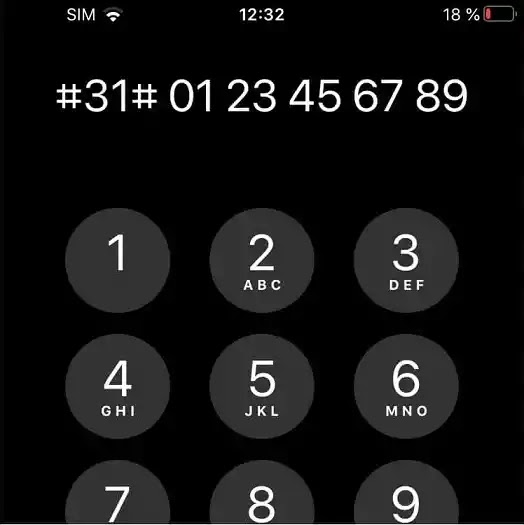
The first method, which is temporary and to be repeated for each call, is to enter a code before the number.
This code is #31# from a mobile phone. So, you type #31#0123456789 to call our example number. This works with all numbers (except exceptions as mentioned above), all phones and all operators.
Make Phone Call Using a Private Number
You can use a blocking code to prevent access to your number. This will cause calls made from your number to come up as “Private Caller” or “Unknown Number” or some variation thereof.

The code given above can change in some countries. For example, the service code in North America is *67. If you want to hide your number and make a private call, just dial *67 before entering the destination number you want to contact.
In the United Kingdom, the most common blocking code is 141. It’s #31# throughout much of Europe and South America.

Any number you call while using *67 or the local version will not be able to redial your number. But keep in mind that this only works for phone calls, not text messages.

Permanently Hide your Phone Number

Here's the first way to make private calls. Like the previous one, it consists of entering a character chain (code). This time, it must be entered alone, without being followed by the number of a correspondent. It does not depend on your operator.

The character string to be entered from a landline: *31#. To disable the hidden call, you then have to enter #31#. And to check if the service is active, enter *#31#. This also can work with mobiles, and you can also do it from parameters as we will show you here.

Hide your Phone Number on Android smartphone

Android has a feature to permanently block your number' display. This function does not depend on the operator and remains active even after changing SIM cards. The feature is usually found in the settings of the Phone app. Here is how to do it:

Make Phone Call Using a Private Number Android


  • Visit the Phone app
  • Open the menu by clicking on the three dots at the top right of the screen
  • Select "parameters"
  • Choose "Other Call Settings" or "More" depending on the model
  • Select "Show My Number" "Show My ID" or "Caller Identity"
  • Check the box next to "Hide my number"

To disable the incognito mode, do the same procedure by unchecking the same option.

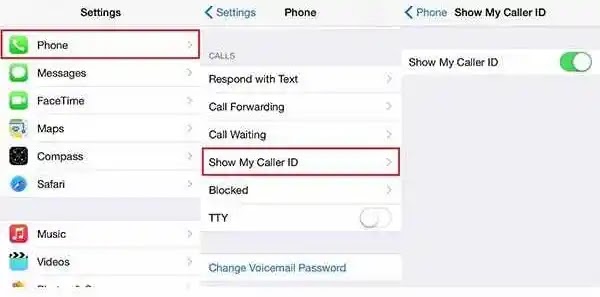
Hide your Number on iPhone

iPhone also includes a feature to permanently hide your number from being displayed. This function does not depend on the operator here either and remains active even after changing SIM cards (you can disable it). To do it:

Make Phone Call Using a Private Number iPhone
  • Go to  "settings" menu
  • Choose "Phone"
  • Select "Show My Caller ID"
  • Change the Switch position.
To disable the incognito mode, do the same by simply changing the switch position.
Also Check:
Share:

Friday, May 8, 2020

How To Block a Phone Number on iPhone

How To Block a Phone Number on iPhone

We've talked in a previous post about How To Block a Phone Number on Android. Today I will show you how to do it on iPhone.

How To Block Calls on iPhone

Apple makes blocking calls on an iPhone a pretty straightforward process. As long as you’re using iOS 7 or later (and you probably are), you can follow these steps to block voice calls, texts, and FaceTime.

How To Block a Phone Number on iPhone

Navigate to the Settings from your home page and tap on Phone if you’re using iOS 11 or later, or General > Phone on earlier versions. Select Calls > Call Blocking & Identification > Block Contact. You can then block calls from anyone on your contact list. You can edit the list or scroll down to the bottom to add a new number by tapping Block Contact.

If the number you wish to block is not a known contact, there’s another option available. Simply open the Phone app and tap Recents. From here, tap on the i icon next to the number you want to block, scroll down, and tap Block this Caller. This is useful for immediately blocking a telemarketer that just called you.

Block calls using iBlacklist Old iOS (iOS 3 and later)

If you’re using an older version of iOS, things might work a bit differently. Here is how to block calls on an iPhone with more in-depth instructions.

Not everyone has the option to upgrade to the latest iOS version given the hardware limitations of older devices. Luckily, the iBlacklist app does a fantastic job of blocking both calls and texts from specific people or unknown numbers if you’re willing to risk jailbreaking your iPhone and shelling out an additional $12 in the Cydia app store. It’s not a difficult or a lengthy process, but it’s one effective way to block unwanted communication. Check out the iBlacklist manual at the top the application’s website for a detailed, photo-laden rundown of the software and all of its features.

How To Block a Phone Number on iPhone
Step 1: Navigate to the iBlacklist app — To begin, tap the Cydia icon on your phone, search for iBlacklist in the search tab, and select the app from the search results. We’re assuming you’ve already jailbroken your iPhone and have access to the Cydia app.

Step 2: Download and install the iBlacklist app — Follow the on-screen instructions for downloading and purchasing iBlacklist. When done downloading, click Close Window to close Cydia and return to your homescreen. You may have to restart your phone before the changes will take effect.

Step 3: Block the number: Scroll through your apps to find the iBlacklist icon and open up the app. Tap Blacklists from the main menu to access your current blacklisted groups and numbers. To add a new number, tap Add new Blacklist, and select Import from Address Book to block an entire contact list. Alternatively, select General BL, and tap the addition sign in the upper right-hand corner to add individual contacts from your address book, recent calls list, or recent SMS list, or to manually enter a number and accompanying contact info.

Step 4: Toggle blocked forms of communication — After you’ve entered the contact to be blocked, look for the red call icon on the configuration role. Set the switch to On to block incoming calls from that contact. You can also block SMS, MMS, and FaceTime by toggling the switches next to the red icons for each form of communication.

Step 5: Set action for blocked calls: Now you’ll need to tap Action when viewing a contact to choose your desired action when the unwanted call comes in. You can choose to accept the call, immediately accept and hang up, send the caller straight to voicemail, issue a busy signal, or block the call before your phone even rings. When finished, close the contact and the changes will be automatically saved. Continue blocking people in the same manner until you’re satisfied with your blacklist.

You can also check:
Share:

Labels

100000 Stars (1) 2013 (1) 360° panorama (1) 80's games (1) Air traffic (1) Airplane (1) Airplane tracker (1) Airplane traffic (1) Amazon (1) Amazon delivery (1) analyze files online (1) Analyze online (1) Analyze URL (1) Android (14) Android applications (6) Android applications on PC (1) Android codes (1) Android emulator (1) Android secret (1) Animation (1) Antivirus (1) app (11) App store (2) Apple (1) April fool's (2) ASCII Art (1) Atomes (1) audio converter (2) Augmented Reality (1) Avatar (2) Avoid spam (1) Bandwidth (1) Bank (1) Battery (1) beautiful folder (1) Best IPTV (1) Best of (1) BlackBerry (1) Block (7) Blog (1) BlookUp (1) Blue Screen (1) BlueStacks (1) BlueStacks emulator (1) Book (2) Breaking Captcha (1) bug (2) Bypass (2) Bypass Captcha (1) Bypass Captcha verification (1) Bypass SMS verification (3) Call verification (1) Camera (1) Camera Size (1) Camera Trace (1) Canon (1) Captcha code (1) Cartoon (1) Cartoonify (1) Cast (1) Change color folder (1) Change font (1) Change IP (4) change website font (1) Charge (1) Check email offline (1) Christopher Sholes (1) Chrome (2) Chrome Experiments (2) Chrome extension (4) Chromebook (1) Chromebook Pixel (1) Cloud Computing (2) Community (1) Compare tool (2) Computer (50) Computer theft (1) Convert (2) Convert files online (1) Convert image to ascii (1) Convert online (2) Corona (2) Coronavirus (2) COVID-19 (2) Create game (1) Credit Card (3) Credit Card Generator (1) Crypt (1) Delete (2) desktop shortcut (1) Detonate nuclear bomb (1) Digital Camera (2) Diposable (1) Direct download (1) Direct download torrent (1) directory (1) dirlock (1) Disconnect Facebook Messenger on Android (1) Disconnect from Facebook (1) Documents (1) Download (3) Draw on desktop (1) Draw on screen (1) Draw on windows (1) Draw on your windows desktop (1) Drones (1) Duplicate folders in same place (1) EA Sports (1) Ebook (2) Electronic video games (1) email (4) Email management (1) Emulator (1) Excel (1) Extension (2) Eye test (1) Eyesight (1) Facebook (13) Facebook chat (1) Facebook infographic (1) Facebook Messenger (1) Facebook Photo Zoom (1) FIFA (2) File (3) file converter (1) File without name (1) Find (1) Find Camera (1) Find computer (1) Firefox (1) Firefox extension (1) fix (3) Flash drive (1) FlightRadar24 (1) Folder with no name (1) Folder without name (1) Folders (2) Folders different color (1) Folders with same name (1) font (1) Fonts (1) Format (1) Free Call (3) Free International Calls (1) FREE SMS (1) FREE SMS Online (1) FREE SMS worldwide (1) Free VCC (2) Galaxy (1) Galaxy Grand 2 (1) Gameglobe (1) Gameplay (1) Games (6) Games online (1) Gmail (1) Golden Touch (1) Google (7) Google Glass (1) Google Helpouts (1) Google Hyperlapse (1) Google Nose (1) Google photos (1) Google Play (3) Google Plus (1) Google Street View (1) GPS (1) GTA (1) Hack (6) Handimation (1) Help over live video (1) Helpouts (1) Hide (3) Hotspot (1) How to (100) How to. (2) Hyperlapse (1) iCloud (1) Image (1) image converter (1) image to ascii (1) Infograghic (1) Inside submarine (1) Instagram (2) Intel (1) International air traffic in real time (1) Internet (95) Internet Connection (1) iOS (8) iOS applications (2) iphone (6) IPTV (1) Journey through Middle-earth (1) Keyboard (3) keyboard layout (1) Landscapes (1) Laptop (1) Life-size (1) Listen music (1) Listen to websites (1) Live (2) Live flight tracker (1) Lock (4) Lock file (2) Lock folder (1) Lock USB (1) Lock your file with a Password (1) Lord of the Rings (1) Lost Camera (1) Mac (5) MAC Address (1) MAC-OS emulator (1) Magnifying the Universe (1) Make game (1) map (3) Mars (1) Martian panorama (1) Martian sol (1) Media (1) message (2) Messi (1) Middle Earth (1) Milky Way (1) Most viewed (1) Most viewed videos (1) Most viewed Youtube (1) Mouse over (1) Movies (2) MS-DOS emulator (1) Museum of me (1) Music (1) nameless folder (1) Namie Amuro (1) NASA (2) Netflix (3) Network (3) Nokia (1) Nokia Lumia 525 (1) Nose (1) Nuclear (1) Nuclear weapons effects simulator (1) Nuke (1) Nuke simulator (1) Ocelot (1) Office Lens (1) Offline (1) Old OS (1) Online music (1) Operating System (1) optical illusion (1) P’9982 (1) Paint (2) Panorama (1) Password (7) Paypal (3) Paypal auto Payment (1) Paypal Payment Subscription (1) PC (1) PC to Mobile (1) Personal assistance (1) Phablet (1) Photo Zoom (1) photos (6) Photoshop (1) PIN (1) Porsche (1) Prime Air (1) Privacy (3) Private network (2) Proxy (2) QWERTY (1) Radar (1) Real-size (1) Real-time (3) Real-time air traffic (1) Rebtel (1) Receive SMS online (1) Recover (1) Remington (1) Rocknest (1) Rooter (1) Run Android apps on PC (1) Run Android apps on Windows (1) Safari (1) Safari extension (1) Samsung (2) Satellite (2) Scan (2) Scan files online (1) Scan online (1) Scan URL (1) Scan Virus (1) scheduled shutdown (1) Screen of Death (1) Scribd (1) Secret codes (1) Secret Menus (1) Secure file (1) Secure folder (1) Security (22) Seen block (2) Seen Facebook (1) Self-destruct (1) SelfishNet (1) Send FREE SMS (1) Sexy (1) Share (2) shortcut (2) Sight test (1) Simulator (3) Skype (2) Smartphone (11) SMS (2) SMS verification (2) Snap (2) Snapchat (1) Social network (8) Software (2) Soundgecko (1) Space (2) Spam (3) speed connection without software (1) Speed up connection (2) Speed up Windows connection (1) SpotAuditor (1) Spying (1) Starlink (1) Status Search (1) Steganos (1) Stolen Camera (1) Stop Motion (1) Stop spam (2) Stream (4) Street View (1) Submarine interior (1) Submarine with Google Street View (1) Surf anonymous (2) Talk Free (1) Tech (27) Temporary email (1) text to ascii (1) text to audio (1) text to mp3 (1) text to sound (1) text to speech (1) Time-lapse (2) Timelapse (2) toolkit (1) Tools (2) torrent (2) Torrent from URL (1) Torrent to direct (1) Track (4) Track computer (1) Track missing computer (1) Translate (1) Turn your blog into a book (1) Tutorials (9) two folders same name (1) Type Faster (1) Typewonder (1) Typing (1) UAV (1) Unblock (4) Unfriend Finder (1) Unfriend me (1) Universe (1) Unlock (2) unsubscribe (1) update Facebook Status (1) Update Facebook status using iphone (1) Updates (1) URL to Torrent (1) USB (2) useless (1) useless web (1) Verified (1) Verify Paypal (1) Viber (1) Video (6) video converter (2) Virtual (3) Virtual computer (2) Virtual Credit Card (2) Virtual desktop (2) Virtual museum (1) Virtual radar (1) Virtual Reality (1) Virus (4) Vision test (1) VLC (1) VPN (5) WAYme (1) We're watching you (1) Weapon (1) website (1) website fonts (1) website shortcut (1) WhatsApp (2) Wifi (1) Wikipedia (1) Windows (15) Windows folder (1) word to ascii (1) word to pdf online (1) Xlsx (1) Youtube (4) Youtube close (1) Zoom (1)